Anijam AI makes animation easy for everyone. You do not need drawing skills. You do not need animation experience. You only need a simple idea or a short script.
The AI handles the hard work and builds your video step by step. This guide explains the full process in clear and simple language so you can start creating with confidence.
Also Read > Create Now – Start Your Animation in Minutes
Intro
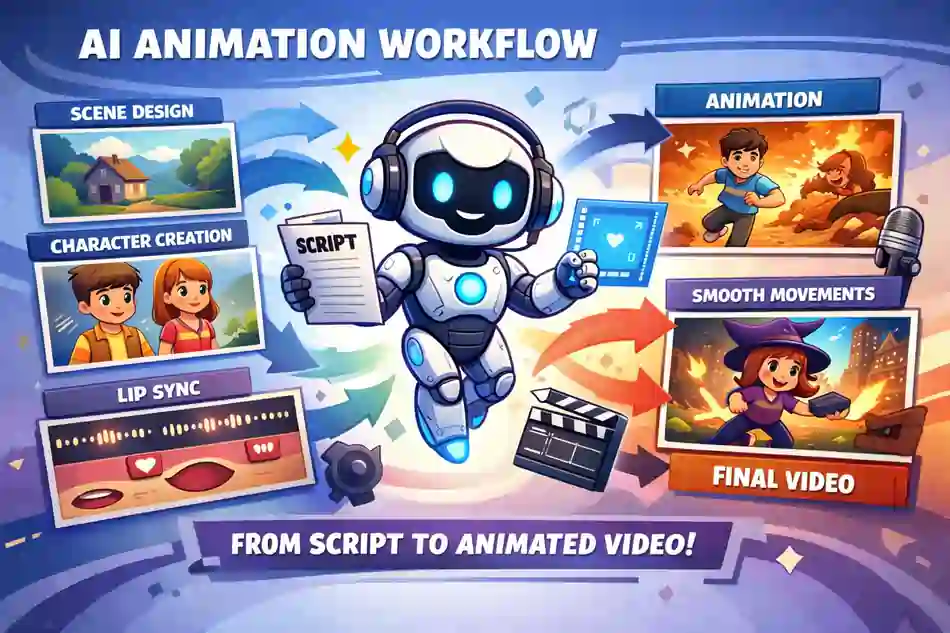
Anijam AI turns your script into a complete animated video. The AI creates scenes, characters, movements, and lip-sync for you. You only focus on your story.
The system manages the technical parts. This makes animation fast, simple, and accessible for all creators.
Step‑by‑Step Process
The workflow is designed to be easy. Each step takes only a few minutes. Here is how the process works from start to finish.
Step 1: Write or Paste Your Script
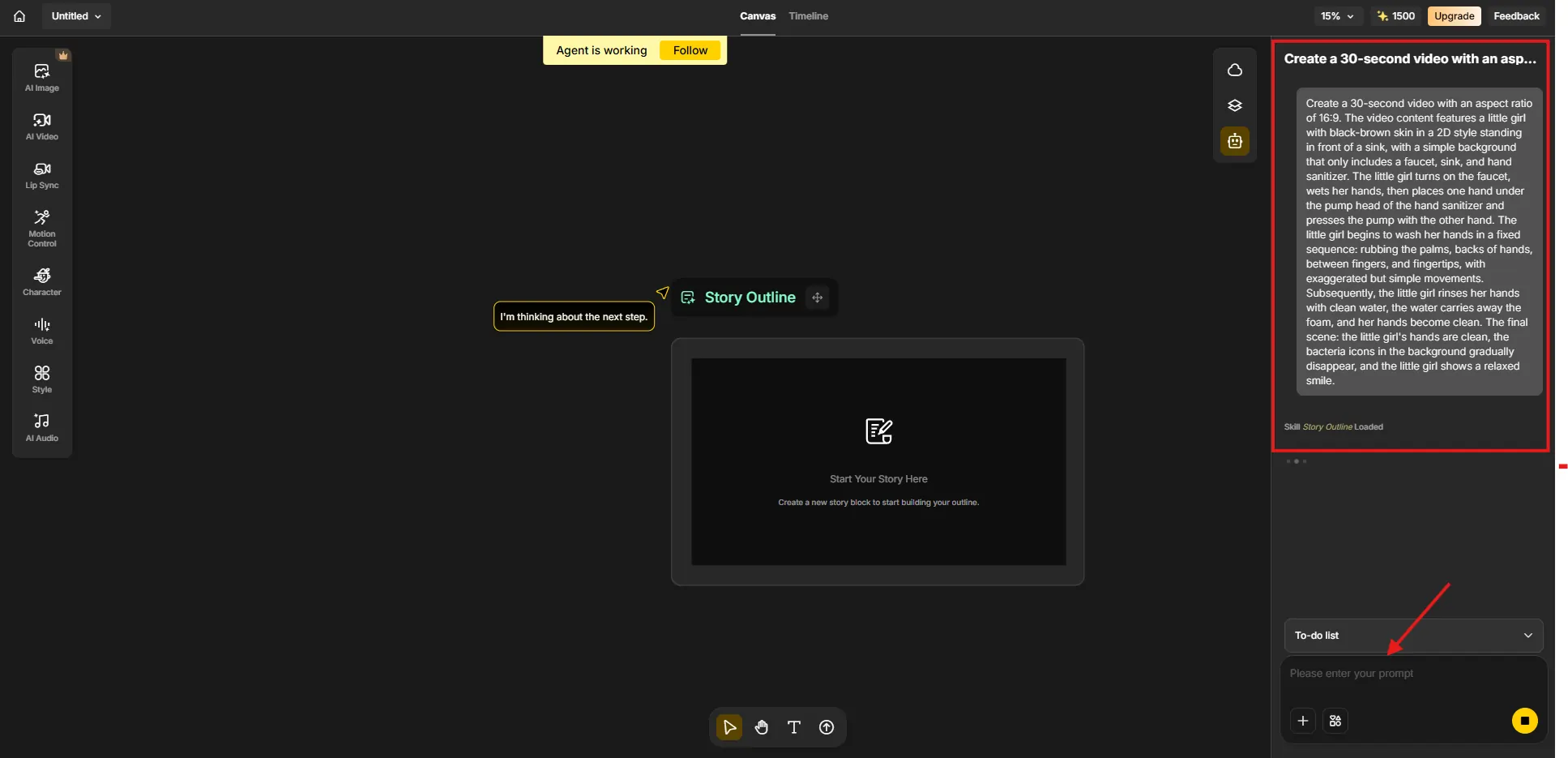
Start by writing your idea. It can be a short story, lesson, message, or full script. You can also paste text from another document.
The AI reads your script and understands the characters, actions, and emotions. Clear writing helps the AI create better scenes.
Step 2: Choose Your Characters and Style
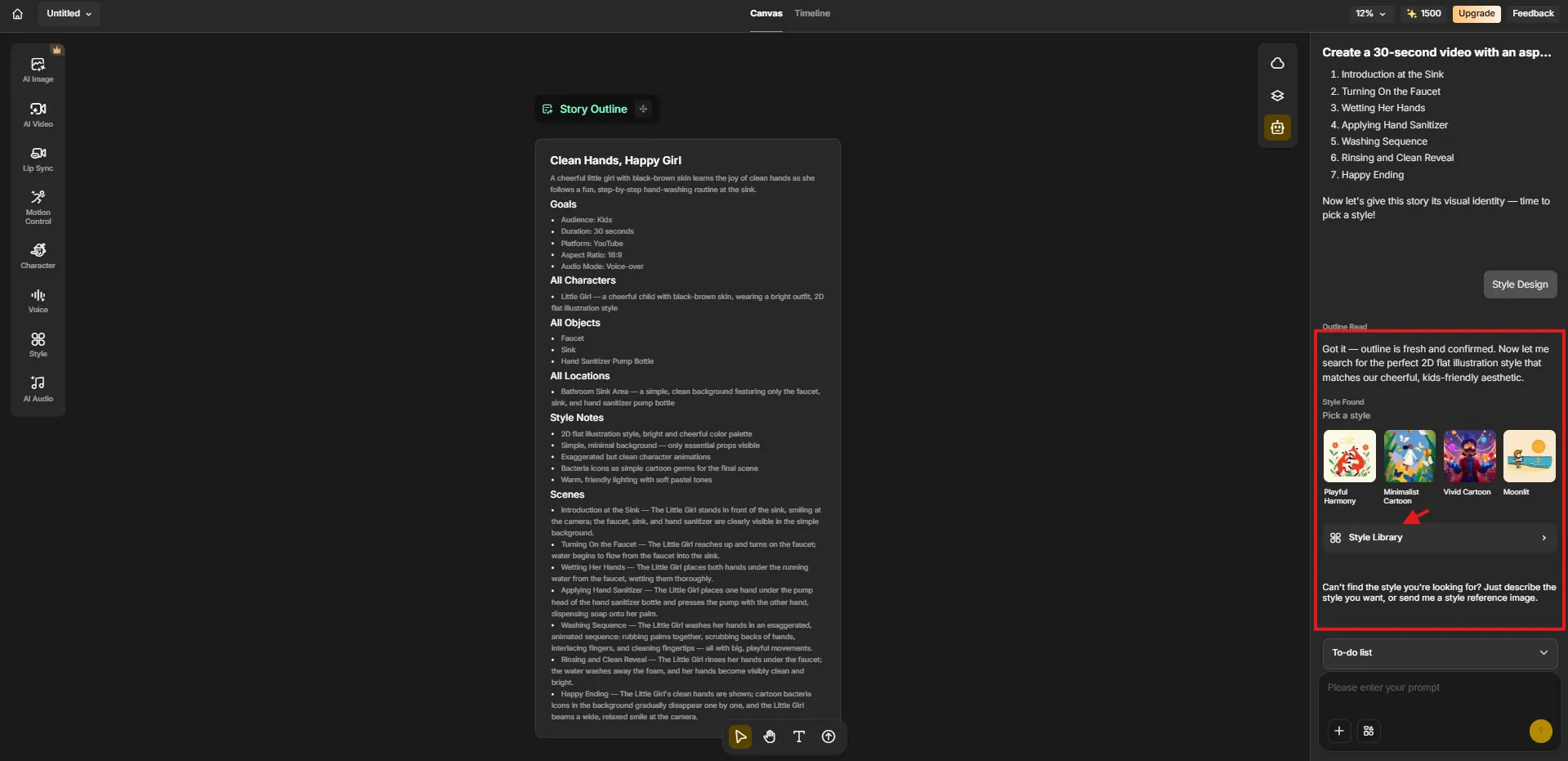
Next, choose your characters. You can pick from the library or design your own. You can change their look, outfits, and personality. You also choose the visual style of your video.
It can be anime, 3D, cartoon, cinematic, or any other style available. These choices help the AI match the animation to your creative vision.
Step 3: AI Creates Scenes Automatically
Once your script and characters are ready, the AI starts building your animation. It creates scenes based on your story. It places characters in the right positions.
It adds movements, expressions, and lip-sync. It also sets up camera angles and transitions. This step saves hours of manual work and gives you a strong starting point.
Step 4: Edit Timing, Actions, and Camera Angles
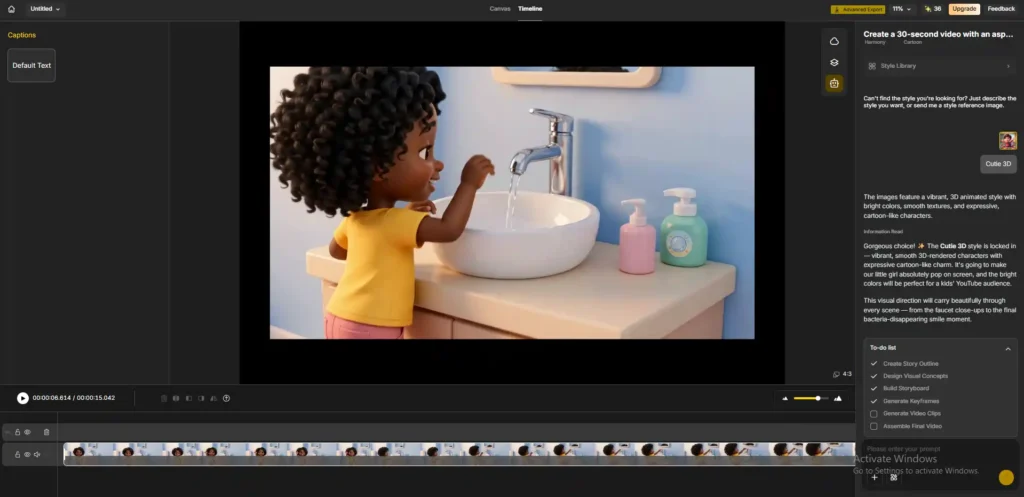
After the AI generates your video, you can edit it. The timeline editor is simple and easy to use. You can adjust scene timing, character actions, and camera movement.
You can change backgrounds, add new scenes, or rewrite lines. These tools help you refine your video and make it match your exact idea.
Step 5: Export Your Final Video
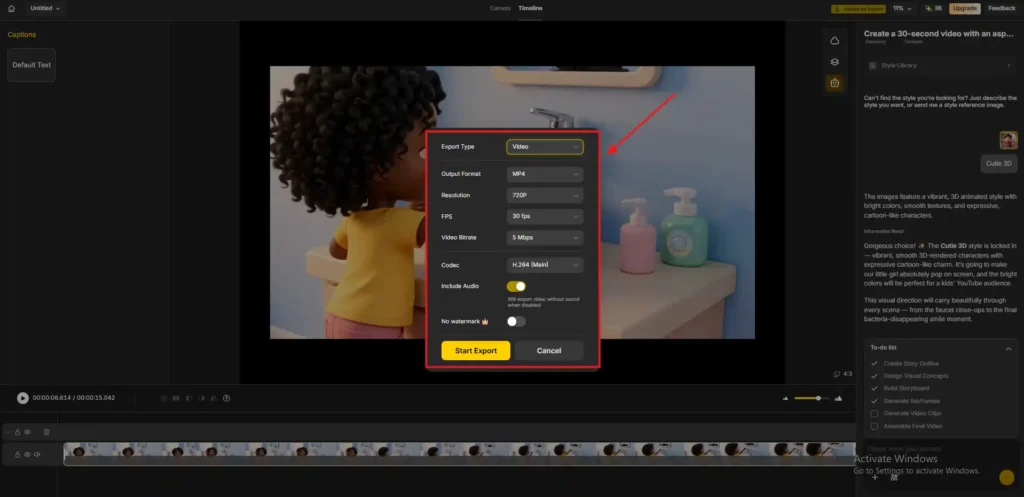
When you are happy with your animation, you can export it. You can download your video in MP4 format. Most plans support HD quality like 720p or 1080p.
Your video is ready for YouTube, social media, websites, or presentations.
Visual Workflow Explanation
Anijam AI includes several tools that make the process smooth and beginner-friendly.
Timeline Editor
The timeline editor shows your scenes in order. You can drag and adjust them easily. You can change timing, transitions, and camera cuts with simple clicks.
Character Tools
You can edit character appearance, expressions, and movements. You can also keep characters consistent across all scenes. This helps your story feel smooth and professional.
Style Library
The style library gives you many visual looks. You can choose a style that matches your story. This helps your video stand out and feel unique.
Style Library
The style library gives you many visual looks. You can choose a style that matches your story. This helps your video stand out and feel unique.
Benefits Section
Anijam AI makes animation simple. Here are the main benefits:
- No Animation Skills Needed
The AI handles the complex parts. You only guide the story. - Fast Scene Creation
The system builds scenes in minutes. This saves time and speeds up your workflow. - Consistent Characters
Your characters stay the same across all scenes. This makes your video look clean and professional. - Auto Lip-Sync
The AI matches mouth movements with your audio. This makes your animation look natural. - Simple Editing Tools
You can edit scenes easily. The tools are clear and beginner-friendly.
Call to Action
You can start your first animation today. The process is simple, and the tools are easy to use. Click the button below to begin your project.